Display five different images. Skip two lines between each image. Each image should have a title.
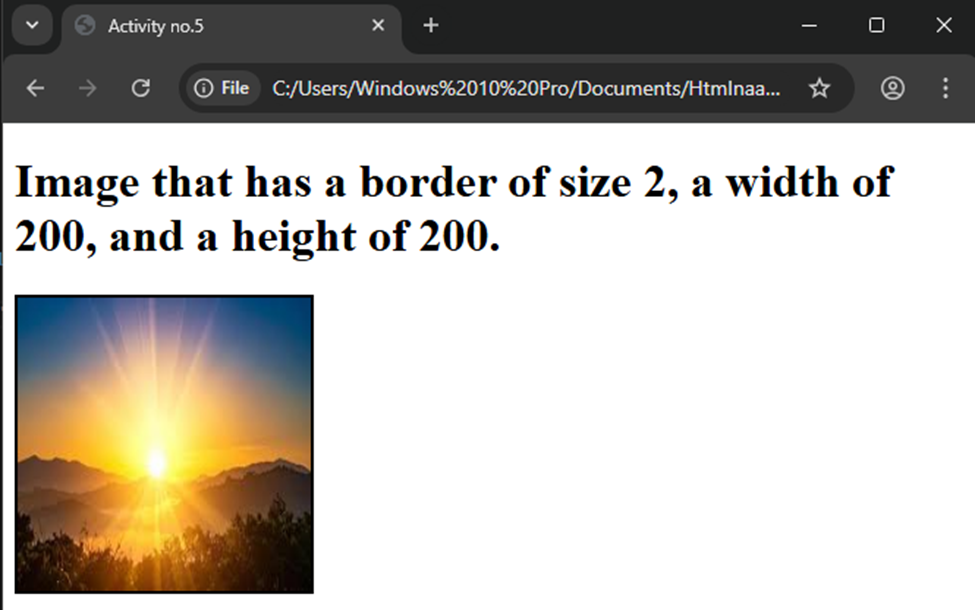
Display an image that has a border of size 2, a width of 200, and a height of 200.
Display an image that when clicked will link to a search engine of your choice (should be opened in a new window).
Display an image that when clicked will link to itself and will display the image in the browser by itself.
Answers:
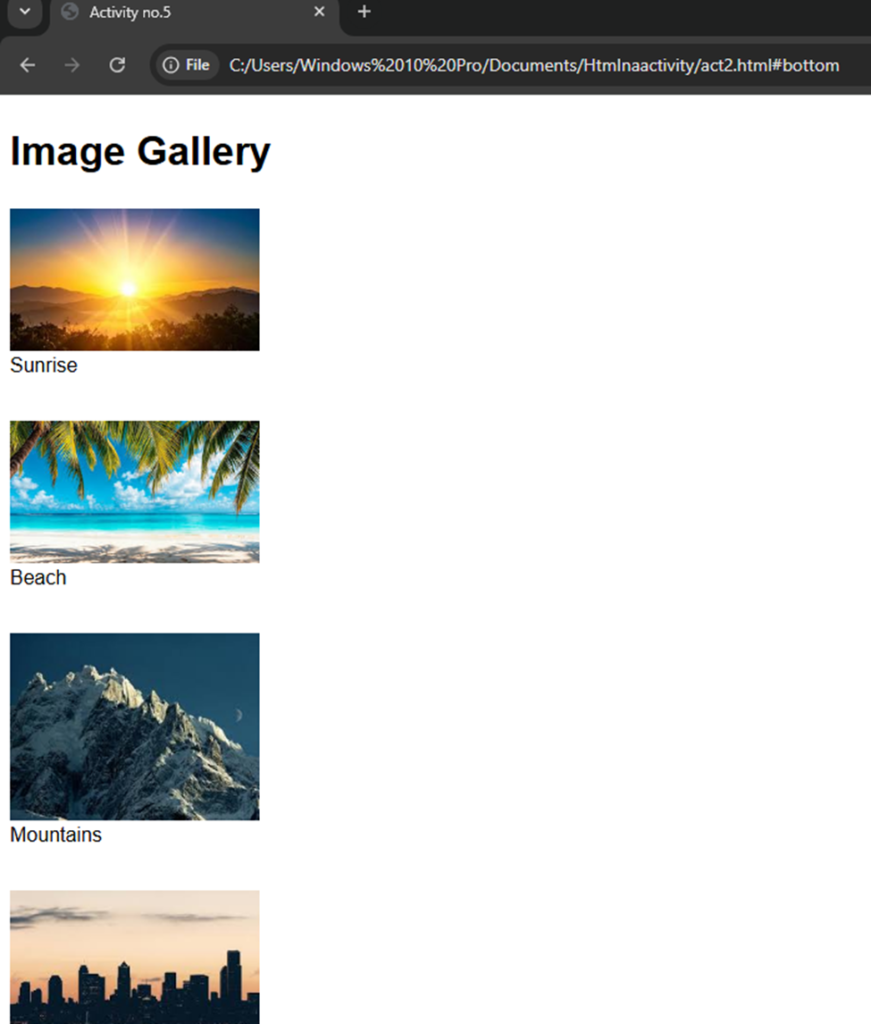
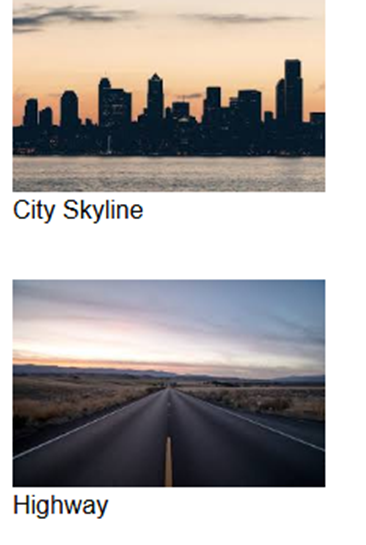
<!DOCTYPE html>
<html lang=”en”>
<head>
<meta charset=”UTF-8″>
<meta name=”viewport” content=”width=device-width, initial-scale=1.0″>
<title>Activity no.5</title>
<style>
body {
font-family: Arial, sans-serif;
line-height: 1.5;
}
img {
max-width: 200px; /* optional: limit image width */
display: block;
}
.spacer {
margin-bottom: 2em; /* creates space between images */
}
</style>
</head>
<body>
<h1>Image Gallery</h1>
<div class=”spacer”>
<img src=”c:\Users\Windows 10 Pro\Downloads\sunrise.jpg” title=”Beautiful Sunrise” alt=”Sunrise”>
<figcaption>Sunrise</figcaption>
</div>
<div class=”spacer”>
<img src=”c:\Users\Windows 10 Pro\Downloads\beach.jpg” title=”Calm Beach” alt=”Beach”>
<figcaption>Beach</figcaption>
</div>
<div class=”spacer”>
<img src=”c:\Users\Windows 10 Pro\Downloads\moutain.jpg” title=”Mountain Landscape” alt=”Mountains”>
<figcaption>Mountains</figcaption>
</div>
<div class=”spacer”>
<img src=”c:\Users\Windows 10 Pro\Downloads\skyline.jpg” title=”City Skyline” alt=”City”>
<figcaption>City Skyline</figcaption>
</div>
<div class=”spacer”>
<img src=”c:\Users\Windows 10 Pro\Downloads\road.jpg” title=”Highway” alt=”Highway”>
<figcaption>Highway</figcaption>
</div>
</body>
</html>
<!DOCTYPE html>
<html lang=”en”>
<head>
<meta charset=”UTF-8″>
<meta name=”viewport” content=”width=device-width, initial-scale=1.0″>
<title>Activity no.5</title>
<style>
img {
border: 2px solid black; /* border size 2px */
width: 200px; /* width */
height: 200px; /* height */
}
</style>
</head>
<body>
<h1>Image that has a border of size 2, a width of 200, and a height of 200.</h1>
<img src=”c:\Users\Windows 10 Pro\Downloads\sunrise.jpg” alt=”Sample Image” title=”Sample Image with Border”>
</body>
</html>
<!DOCTYPE html>
<html lang=”en”>
<head>
<meta charset=”UTF-8″>
<title>Activity no.5</title>
</head>
<body>
<h1>Clickable Image Example</h1>
<!– Image linking to Google –>
<a href=”https://www.google.com” target=”_blank”>
<img src=”c:\Users\Windows 10 Pro\Downloads\gologolo.png”
alt=”Google Logo Placeholder”
title=”Click to visit Google”
style=”border: 2px solid black;”>
</a>
</body>
</html>
<!DOCTYPE html>
<html lang=”en”>
<head>
<meta charset=”UTF-8″>
<title>Activity no.5</title>
</head>
<body>
<h1>Image Linking to Itself</h1>
<!– Clickable image that opens itself in the browser –>
<a href=”c:\Users\Windows 10 Pro\Downloads\gologolo.png” target=”_blank”>
<img src=”c:\Users\Windows 10 Pro\Downloads\gologolo.png”
alt=”Nature Placeholder Image”
title=”Click to view the image by itself”
style=”border: 2px solid green;”>
</a>
</body>
</html>